
Connect to GetYourGuide
Complete setup guide to list your Dewex activities on the GetYourGuide marketplace and sync prices, availability and bookings in real time.
Last updated : 2026-03-04
What gets synchronised
Before you start
- An active GetYourGuide Supplier account with at least one product created.
- Your activity already created in Dewex (wizard completed up to Step 7).
- Automatic booking acceptance enabled on GetYourGuide — required by GYG.
- Cut-off times in Dewex must be equal to or shorter than the cut-off set on GYG (max 10h).
Find your GYG IDs
You need two IDs from your GYG Supplier Portal: the Product ID (to identify your product) and the Option ID (the one you enter in Dewex).
1A — Product ID
- 1Log into the GYG Supplier Portal (supplier.getyourguide.com).
- 2Go to Create → Manage Products.
- 3Select the product you want to connect.
- 4Note the Product Id shown under the product title (e.g. 1179488).
Interlaken: Sunset Sledding Adventure on the Slopes
Bookable1B — Option ID
- 1On the same product page, scroll down to the Options section.
- 2Click on the option you want to connect.
- 3Note the Option ID in the option details (e.g. 1818562).
- 4This is the value you will enter in Dewex.
Standard Option
Reference: NSFM
Do not confuse Product ID and Option ID. Only the Option ID is entered in the Dewex wizard (Step 2).
Enable GYG in Dewex
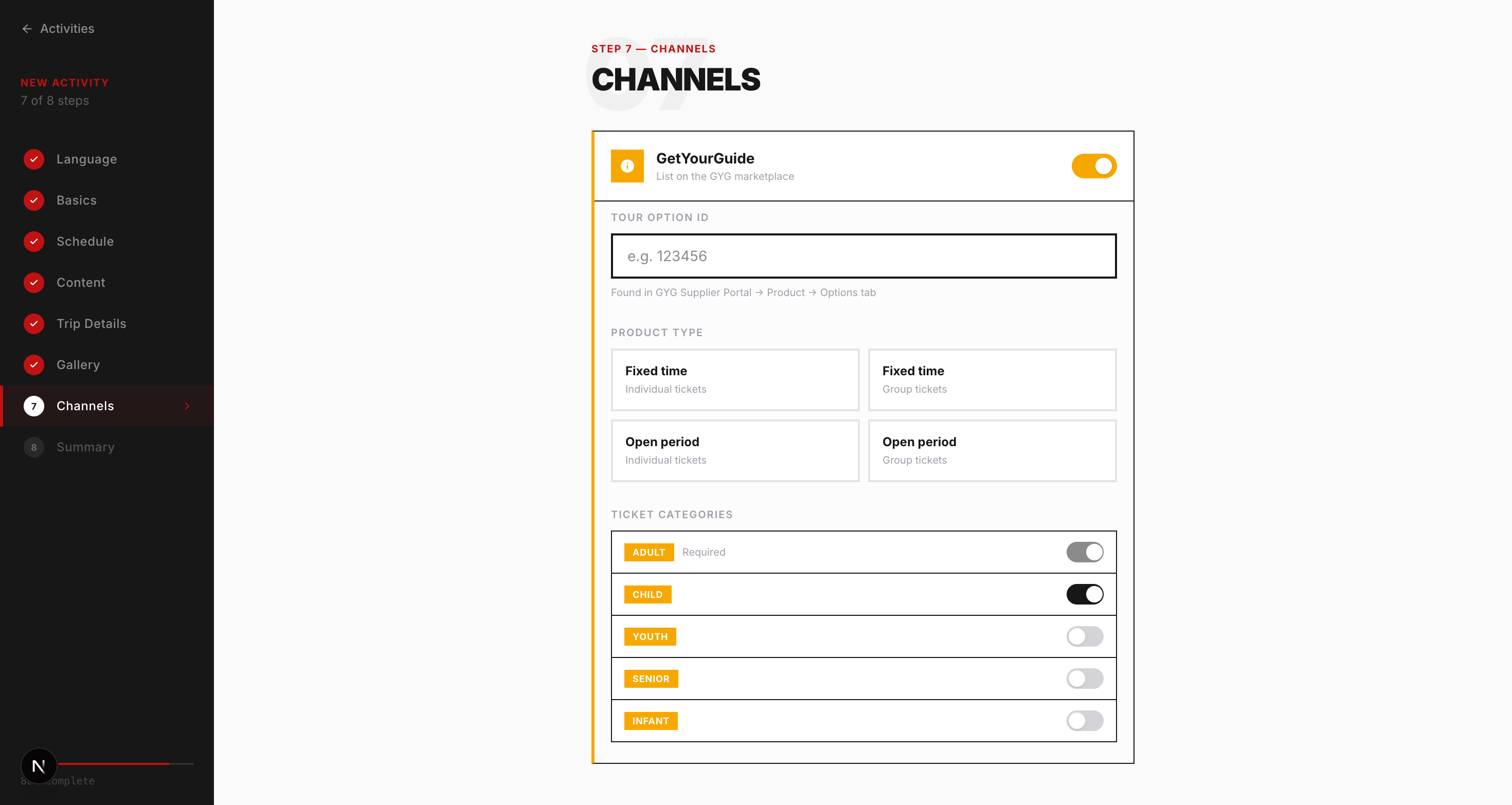
In your Dewex activity wizard, Step 7 (Sales Channels) is where you configure the GetYourGuide connection.
- 1Open the activity in Dewex → go to Step 7 — Sales Channels.
- 2Toggle the GetYourGuide switch to ON.
- 3Enter the Option ID found in Step 1B (e.g. 1818562).
- 4Select the product type: Time Point (fixed departure) or Time Period (opening hours window).
- 5If Time Period: set your opening hours (e.g. 09:00 → 17:00).
- 6Select which ticket categories to enable (ADULT is required; CHILD, YOUTH, SENIOR, INFANT are optional).
- 7Save and finish the wizard.
Set up Dewex in GYG Supplier Portal
Back in GetYourGuide, configure your product option to use Dewex as the booking system. This step enables real-time sync.
- 1In GYG Supplier Portal, go to Create → Manage Products → select your product.
- 2Find the option and click 'Edit option'.
- 3In the left sidebar, click 'Connectivity Settings'.
- 4Select 'Yes, I use a reservation system'.
- 5In 'Select your Reservation System', choose Dewex.
- 6In 'External product ID', enter your Dewex Activity ID (find it in your Dewex dashboard — see note below).
- 7Click Continue, then save.
Connectivity Settings
Connect your option to a reservation system for real-time availability sync.
Do you use an online reservation system?
Select your Reservation System
External product ID
Enter your Dewex Activity ID
Where to find your Dewex Activity ID
In your Dewex dashboard, click on any activity to open its detail panel. The Activity ID is shown there — copy it and paste it in the External product ID field above.
Dewex Dashboard — Activity Detail
Your Dewex Activity ID is shown in the activity detail panel in your Dewex dashboard. Click on an activity to open its detail and copy the ID.
Price Synchronisation (Recommended)
Enabling price sync means you only manage prices in Dewex — GYG updates automatically. Without this, you must update prices manually in both platforms.
- 1This is already configured if you selected 'Availability & Pricing' in Step 3.
- 2To add it later: in GYG Supplier Portal go to Edit option → Pricing.
- 3Select Yes for 'Do you use a booking system?', choose Dewex, enter your Dewex Activity ID.
- 4Select 'Availability and price', then add pricing for each GYG ticket category.
- 5Save.
Ticket Category Mapping
For each ticket type, select the closest GYG standard category. GetYourGuide does not support custom categories.
| GYG Category | Dewex Code | Age Range | Required |
|---|---|---|---|
| ADULT | adult | 18+ | Yes |
| CHILD | child | 3–17 | No |
| YOUTH | youth | 18–25 | No |
| SENIOR | senior | 65+ | No |
| INFANT | infant | 0–2 | No |
ADULT is always required. If your Dewex ticket categories have different quantities, GYG uses the lowest quantity across all categories to calculate total capacity.
Product Types
Time Point
Activity starts at a fixed time. Example: guided tour departing at 10:00. No opening hours configuration needed.
Time Period
Activity is available within a time window. Example: museum open 09:00–17:00. Requires fromTime and toTime.
Group / Private Tours
Select TIME_POINT_GROUPS or TIME_PERIOD_GROUPS for group offerings. Only one ticket option can be shared per GYG group product.
Each type supports Individual (per-person tickets) and Group (flat rate for the group) variants.
Group & Private Tours
For group or private tour products, follow these additional steps in the Dewex wizard.
- 1In Dewex wizard Step 7, select TIME_POINT_GROUPS or TIME_PERIOD_GROUPS as the product type.
- 2Set a maximum limit for tickets per order to manage group sizes.
- 3Select Yes for group offers — this designates the product for group/private tour sales only (not available for individual sale).
- 4Only one ticket option can be shared with GYG per group product.
- 5Save and connect to GYG as described in Steps 2–3.
Marking an offer as group explicitly designates it for group or private tour sales only.
Managing GYG Tickets
Tickets sold via GetYourGuide can be scanned using either the Dewex scanner or the GYG scanner app.
- The barcode on GYG tickets is compatible with both the Dewex and GYG scanner apps.
- Ticket details include tour name, date, time, and meeting point.
- Cancellations must be initiated from the GetYourGuide platform — not Dewex.
- Refunds to customers are processed by GetYourGuide.
Important
- Cancellations can only be initiated from the GetYourGuide platform.
- Refunds to customers are processed by GetYourGuide, not Dewex.
- If the cut-off time in Dewex is shorter than the GYG cut-off, GYG will auto-reduce to match. Max cut-off allowed by GYG is 10 hours.
- If multiple GYG options share the same availability, they can map to one Dewex offer — but GYG does not recommend this as you lose visibility on which option was booked.
- GYG uses the lowest ticket category quantity to calculate total event capacity.
Support
For setup issues, contact Dewex first. For GYG-side configuration problems, use GYG Connectivity support.
Dewex Technical Team
contact@dewex.ioGYG Connectivity Support
supplier-api@getyourguide.com